Back to Training
Getting Started

Get Started with FX-Port

Set up your agency account, configure your profile, manage team members, and start making bookings on FX-Port.

Welcome to FX-Port

FX-Port is a comprehensive B2B travel distribution platform designed for travel agencies and corporate travel departments. We connect you directly with suppliers worldwide, providing negotiated B2B net fares for flights, hotels, transfers, ferries, packages, eSIMs, and Umrah services.

Unlike traditional GDSs, FX-Port offers competitive rates through our direct supplier partnerships, allowing you to increase margins while offering your clients better prices. Whether you're a boutique agency or an established corporate travel provider, FX-Port empowers you with the tools and rates you need to grow your business efficiently.
Set Your Agency Profile

Your agency profile is the foundation of your FX-Port account and represents your brand to customers. Customize your company information, branding, and contact details to ensure a professional presence across all bookings and documents.

Customize Your Company Profile

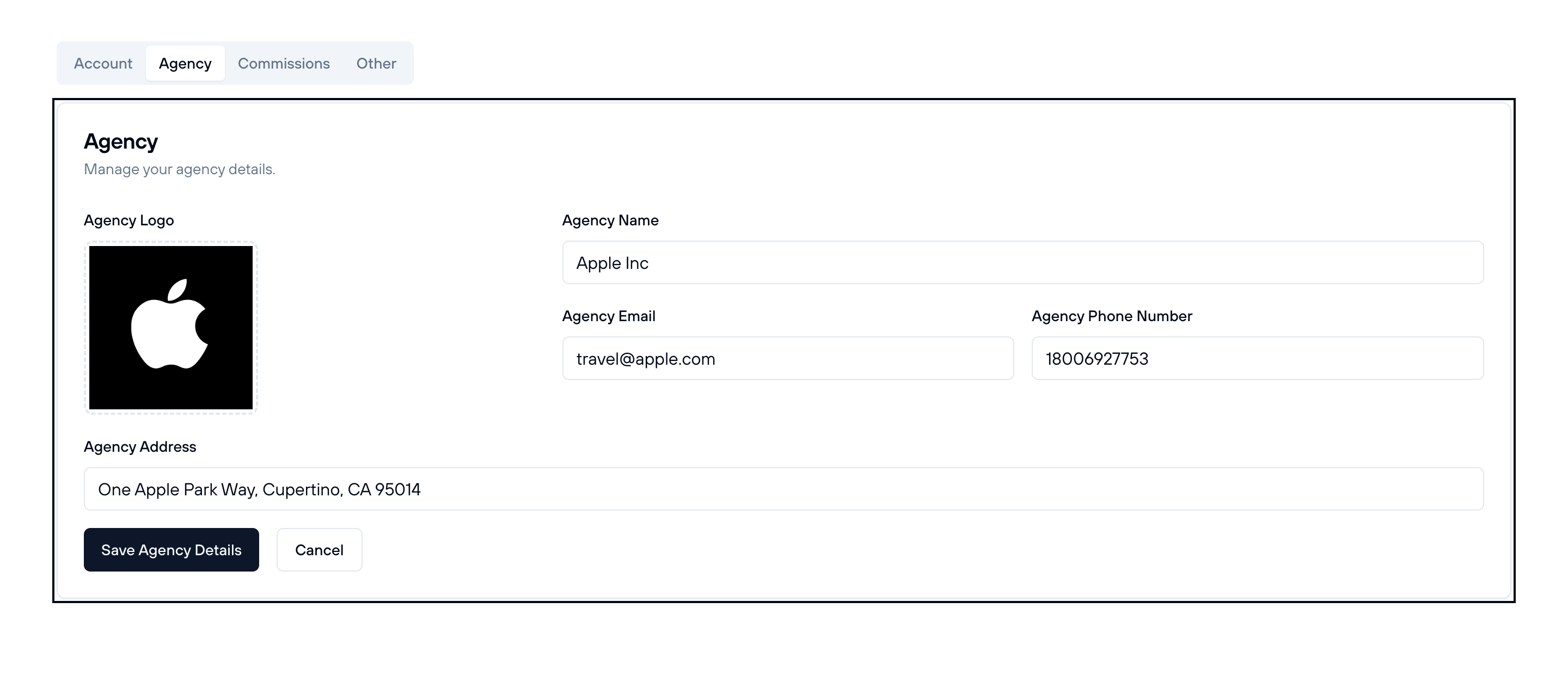
Access your agency profile settings via Menu > Settings > Agency Profile. This is where you'll configure your company's public-facing information that appears on all bookings, invoices, and customer communications.

What you can customize:

  • Agency Name: Your company's official name as it will appear to customers
  • Contact Information: Phone number, email address, and office address
  • Company Logo: Your agency's logo for professional branding

Why this matters: Your agency profile information is automatically included in all booking confirmations, vouchers, and invoices sent to your customers. A complete and professional profile builds trust and credibility. If you don't add a logo or contact information, they will be omitted from booking emails and tickets, potentially appearing unprofessional. We strongly recommend properly personalizing your account for maximum visibility and a professional impression.

Set agency profile on FX-Port dashboard

Screenshot: Agency Profile settings page showing all customizable fields including name, contact info, logo upload, and business settings.

How to update your agency profile:

  1. 1.Go to Menu > Settings > Agency Profile or visit fx-port.com/dashboard/settings?tab=agency
  2. 2.Click the "Edit" button to unlock the form fields
  3. 3.Update your company information: name, contact details, upload your logo, or change any business settings
  4. 4.Click "Save Changes" to apply your updates
  5. 5.Your updated profile information will immediately appear on all future bookings and communications

Edit Your Account Details

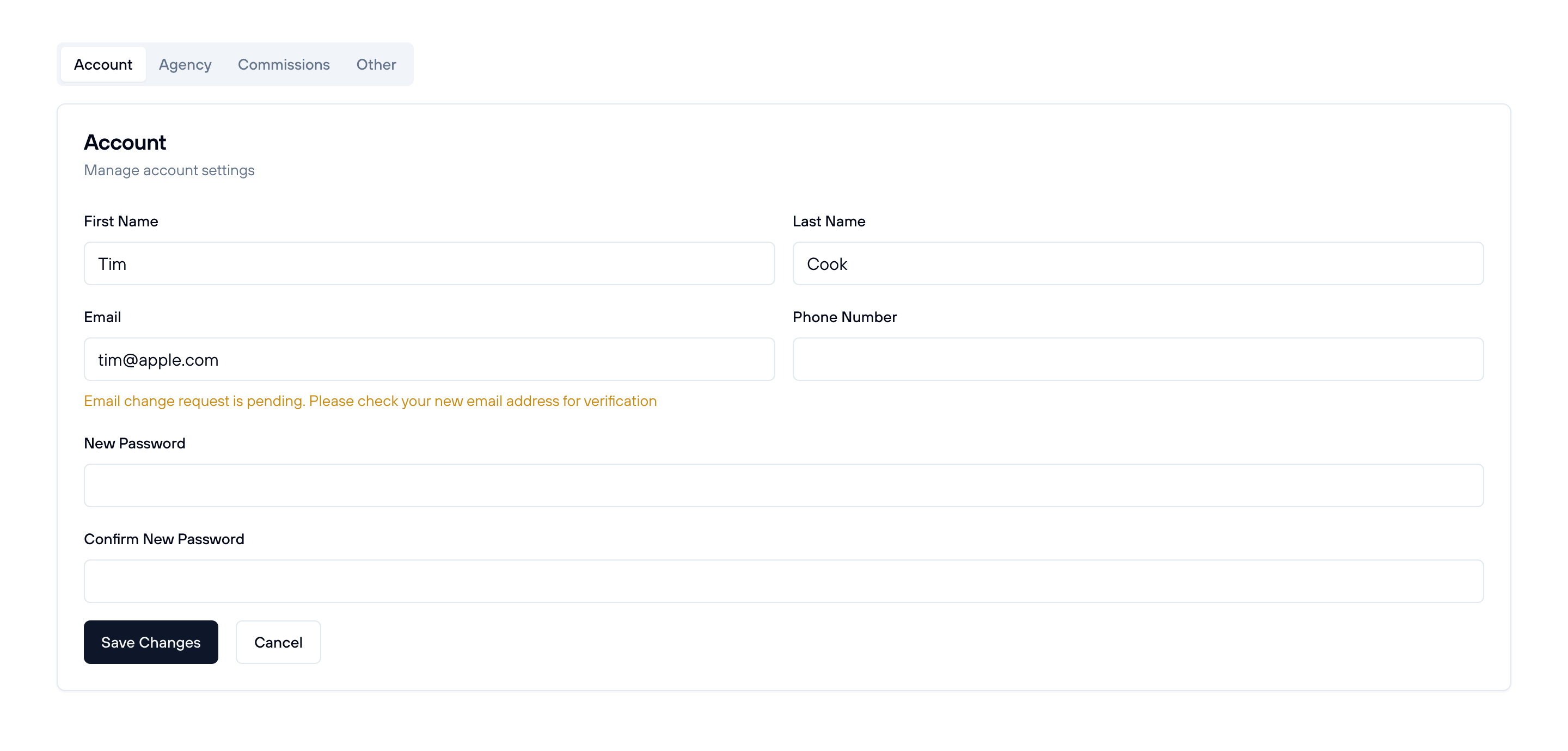
Both your agency profile and personal account details are managed in the same settings area: Menu > Settings or fx-port.com/dashboard/settings. In this unified dashboard, you can update your personal information (name, phone, email, password) separately from your agency branding settings.

What you can edit:

  • Full Name: Your personal name as the account holder
  • Phone Number: Your primary contact number
  • Email Address: Your login email (ensure this is current and secure)
  • Password: Change your password regularly for security

How to update your details:

  1. 1.Click the "Edit" button to unlock the form fields
  2. 2.Update any information you need to change (name, phone, email, or password)
  3. 3.Click "Save Changes" to confirm and save your updated information
  4. 4.If you changed your email, you may need to verify the new email address
Edit account details on FX-Port

Screenshot: Account settings page showing Edit button, form fields for name, phone, email, and password, with Save Changes button.

Add Users and Roles

FX-Port allows you to manage team members with two distinct user types: Managers and Regular Users (Employees). Each role has different permissions based on your organizational needs. To manage users, access Menu > Users.

Managers

Managers have administrative control over your agency account and can handle business operations and team management. They are ideal for agency owners, administrators, or senior staff members.

Manager Permissions:

  • View & Edit Commissions: Configure commission rates and monitor earnings
  • Personalize Company Profile: Update agency name, logo, contact info, and business details
  • View Account Analytics: Access reports, booking statistics, and performance metrics
  • Manage Users: Invite new users, upgrade/downgrade between Manager and Regular roles, suspend users
  • Full Booking Access: Create, modify, and cancel bookings like Regular Users
  • User Activity Tracking: View which user performed which operation (bookings, cancellations, refunds, etc.)

Regular Users (Employees)

Regular Users are designed for employee accounts focused on day-to-day booking and reservation management. They have limited access to prevent unauthorized changes to agency settings or commissions.

Regular User Permissions:

  • Make Bookings: Search and book flights, hotels, transfers, ferries, eSIMs, and packages
  • Manage Reservations: Modify and cancel existing bookings
  • Access Shared Balance: Use the company's account balance for all bookings
  • Limited Account Access: Cannot edit commissions, agency profile, or manage users

How to Invite and Manage Users

To invite new team members to your FX-Port account, navigate to Menu > Users. The user management panel displays all current team members with their status, role, and available actions.

How to invite a user:

  1. 1.Click the "Invite User" button in the Users panel
  2. 2.Enter the user's email address and select their role (Manager or Regular User)
  3. 3.An invitation email will be sent to them automatically
  4. 4.The registration/activation link will also be copied to your clipboard for easy sharing
  5. 5.The new user will have a "pending" status until a Manager approves their access
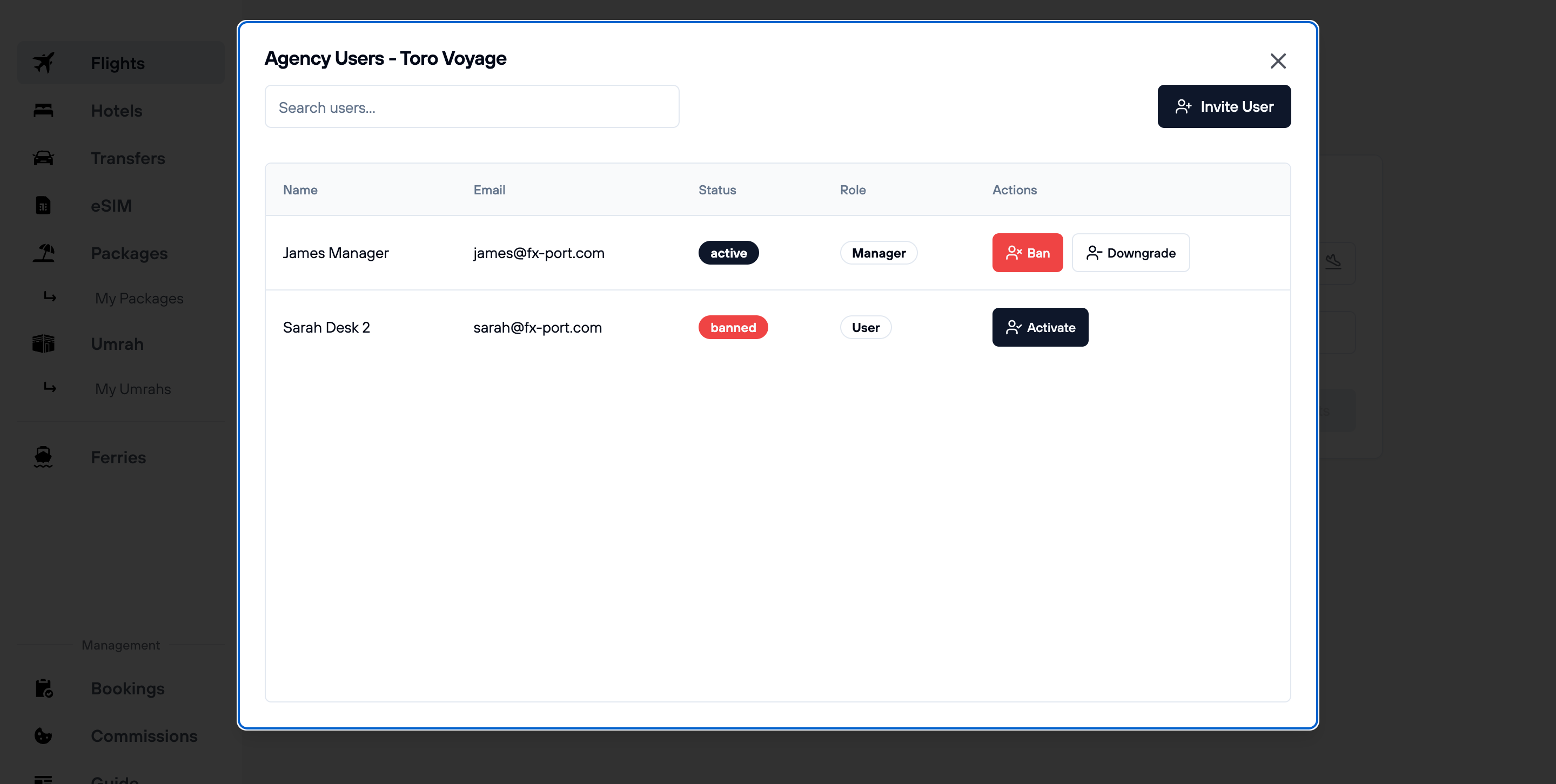
User management panel on FX-Port showing list of team members and invite button

Screenshot: User management panel showing invited users with their email, status (active/pending/banned), assigned role, and available actions (Invite, Approve, Ban, Downgrade, Upgrade, Suspend).

Manager actions in the Users panel:

  • Upgrade User: Change a Regular User to Manager role to grant additional permissions
  • Downgrade User: Change a Manager to Regular User role to restrict their access
  • Approve User: Activate pending users so they can access the dashboard
  • Suspend User: Temporarily or permanently prevent a user from accessing the account

Important Considerations

  • Shared Balance: All users (Managers and Regular Users) share the same agency account balance. Any booking made by any user will deduct from this shared balance.
  • Activity Tracking: Managers can view which user performed which operation, making it important to create individual accounts for each employee rather than sharing login credentials.
  • Security Best Practice: Avoid sharing the same account credentials with multiple employees. Instead, create separate accounts for each team member so you can track their activities and manage permissions independently.
  • Approval Process: When a new user is invited, they must be approved by a Manager before gaining access to the dashboard, ensuring proper onboarding and control over account access.

Set Commissions

Commissions are how your agency increases its margins on travel products. FX-Port returns B2B fares from suppliers by default, and you must configure commissions on your account to add markup to these prices. This section explains how to set up, manage, and understand commissions in your agency account.

Understanding Commissions

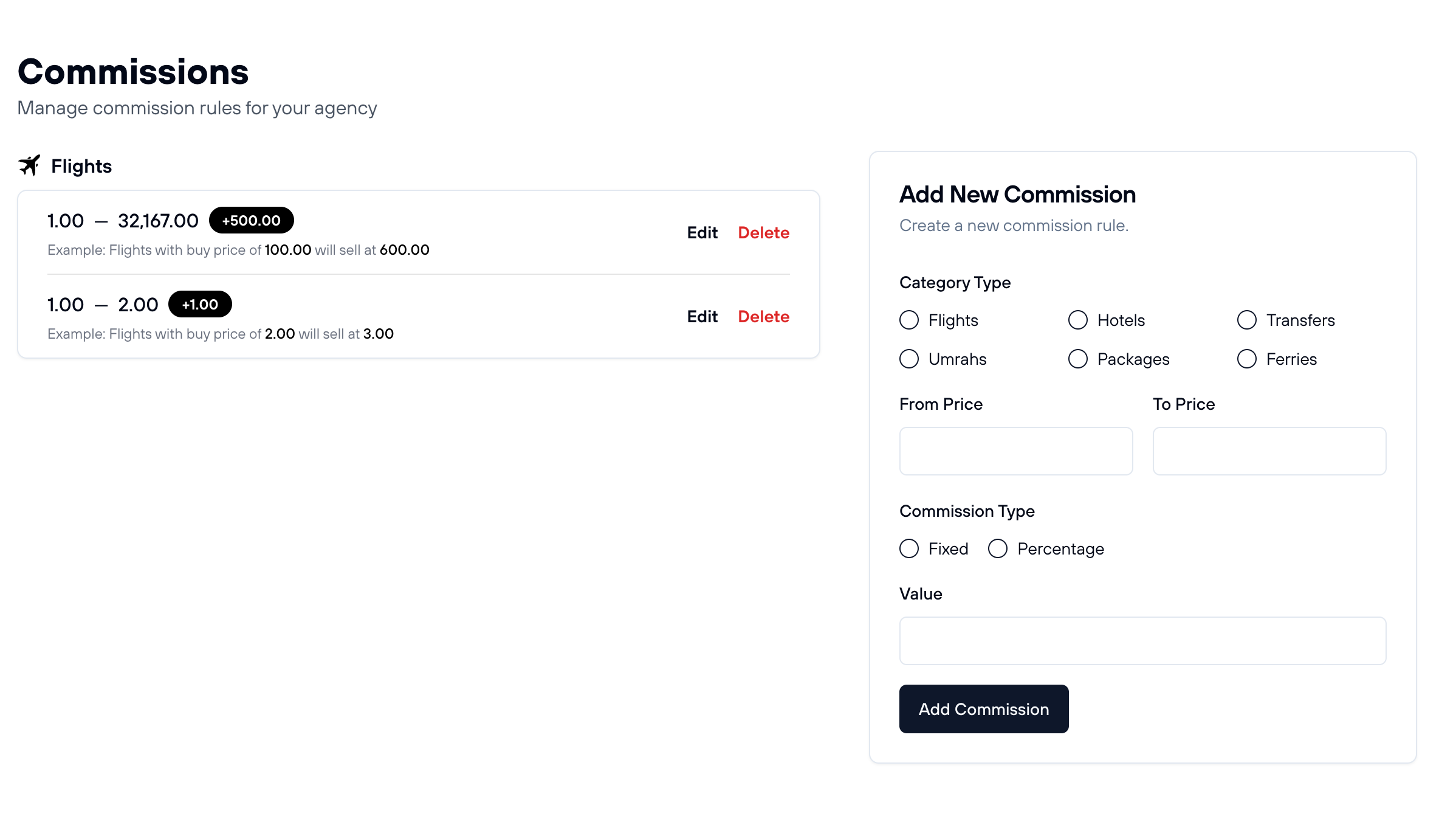
Commissions are added to B2B prices to create the final selling price. To set up a commission, you specify three things:

  • 1.Service Category: Which service does this commission apply to? (Flights, Hotels, Transfers, Ferries, Packages, or Umrah)
  • 2.Price Range: What booking prices should this commission apply to? For example, prices between $0 and $500, or $500 to $2000
  • 3.Commission Type & Value: How much markup? Either a fixed dollar amount (e.g., add $5 to every booking) or a percentage (e.g., add 10% of the price)

Key Points About Commissions:

  • You can set multiple commissions per service category. For example, different markups for budget flights ($0-200) versus expensive flights ($500+)
  • If a product's price matches multiple commission rules, FX-Port automatically uses the highest commission for you
  • Only Managers can add, edit, or remove commissions. Regular employees cannot access commission settings
  • Special note on eSIMs: eSIM packages automatically come with a 12% commission already included. You do not need to manually set up eSIM commissions

How to Add a Commission

Access commissions via Menu > Commission or directly from the dashboard sidebar Commission button (or https://fx-port.com/dashboard/commissions).

Steps to Add a New Commission:

  1. 1.Click the "Add New Commission" button on the Commissions page
  2. 2.Select a Category Type — choose which service this commission applies to (Flights, Hotels, Transfers, Ferries, Packages, or Umrah)
  3. 3.Enter the Price Range — define the "From Price" and "To Price" in USD (for example: From 0 To 500)
  4. 4.Choose your Commission Type — select either "Fixed" for a flat dollar amount or "Percentage" for a percentage-based markup
  5. 5.Enter the Value — if you chose Fixed, enter the dollar amount (e.g., 10 for $10). If you chose Percentage, enter the percentage (e.g., 10 for 10%)
  6. 6.Click "Add Commission" to save your new rule
Commission settings panel on FX-Port showing category types, price ranges, and commission configuration options

Screenshot: Commission management panel showing how to configure category type, price range (From/To), commission type (Fixed or Percentage), and value.

Commission Examples

Here are practical examples showing how to set up commissions and how they work in real bookings. These examples will help you understand both the setup process and the financial impact on your agency's earnings.

Example 1: Tiered Flight Commissions (Different Rates for Different Prices)

Flights from $0 to $200:Add $5
Flights from $200 to $500:Add $15
Flights from $500 to $5000:Add $30

Why use tiered commissions? Budget flights generate less profit per booking, while expensive flights can sustain higher markups. This strategy maximizes earnings across all price points.

Example 2: Percentage-Based Hotel Commission

All hotels from $0 to $10000:Add 10%

How this works in practice:

  • A $100 nightly hotel room earns you a $10 commission
  • A $300 nightly hotel room earns you a $30 commission
  • Percentage commissions scale automatically with higher prices

Example 3: Real-World Booking Calculation

Imagine you book a flight for a customer. Here's exactly what happens with your balance and earnings:

B2B Price from Supplier:$250
Your Active Commission Rule:+$10 (for flights $0-500)
Final Price Shown to Customer:$260

What gets deducted from your balance? Only $250 (the B2B price). The $10 commission is yours to keep — FX-Port never deducts it from your balance.

Result: Your agency retains the full $10 profit while paying only the B2B price. This is where your agency makes money.

Missing Commission Warning

It's crucial to set commission rules that cover all possible price ranges. If you set your highest price range at 1,000 USD but a flight costs 2,500 USD, no commission will be applied to that product because you haven't defined a rule that covers it.

Important: Set Commissions for All Price Ranges

Always make sure your highest price range is broad enough to cover all possible bookings. For example, instead of ending your commissions at $1,000, set your final rule to cover $1,000 to $50,000 or higher. This ensures no booking falls outside your commission rules.

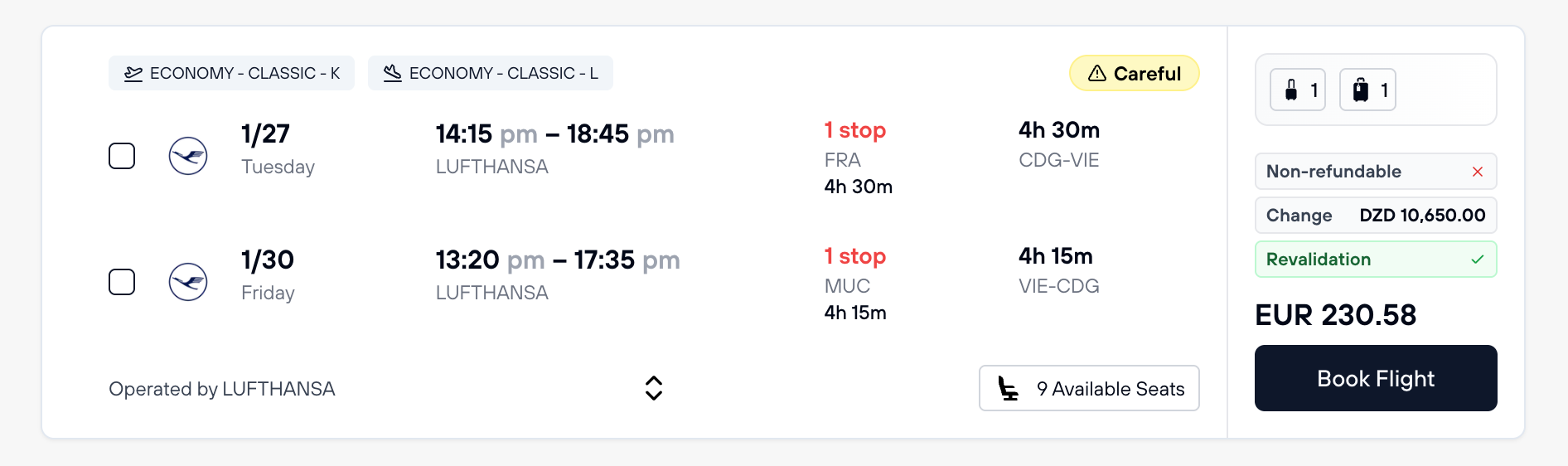
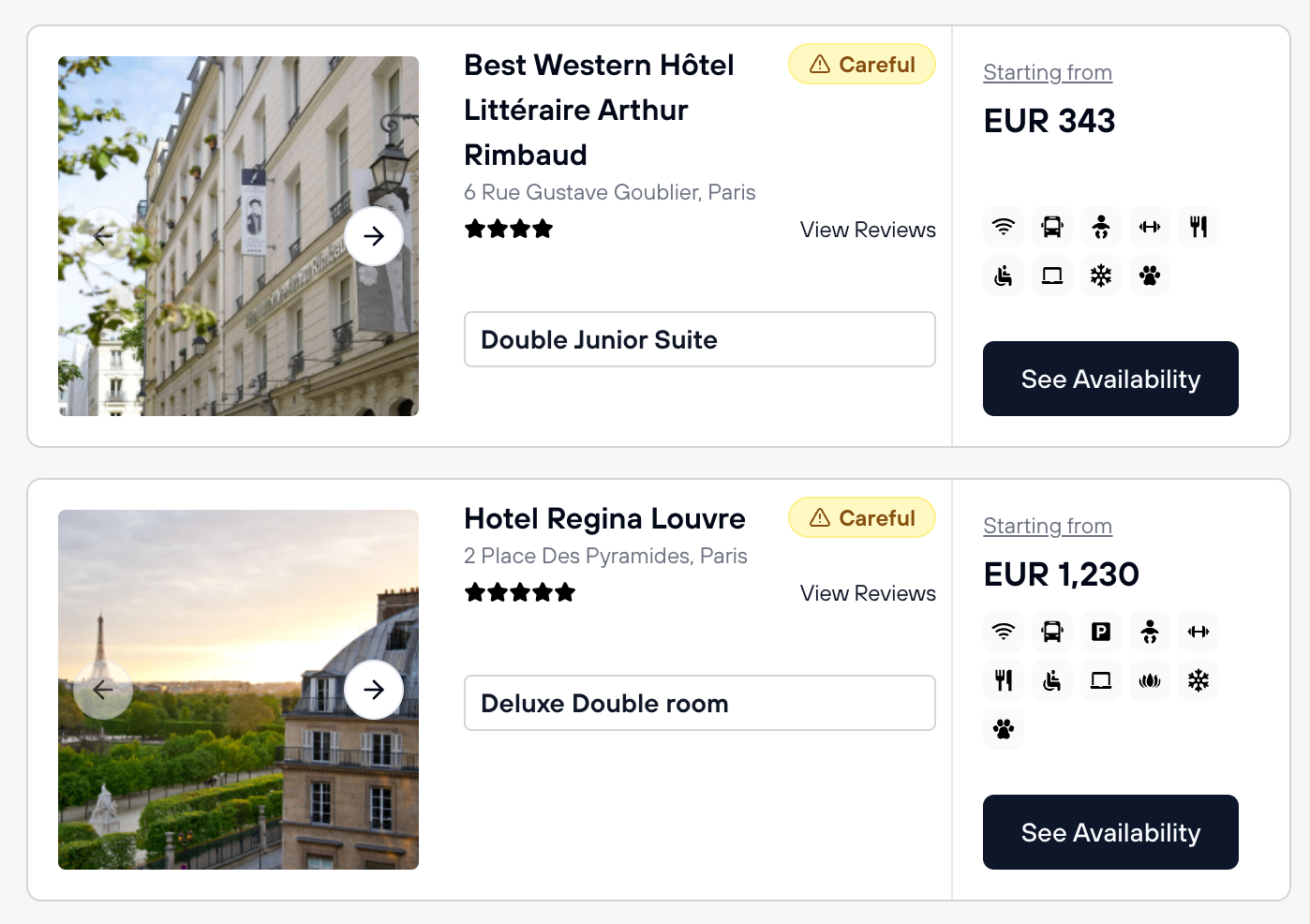
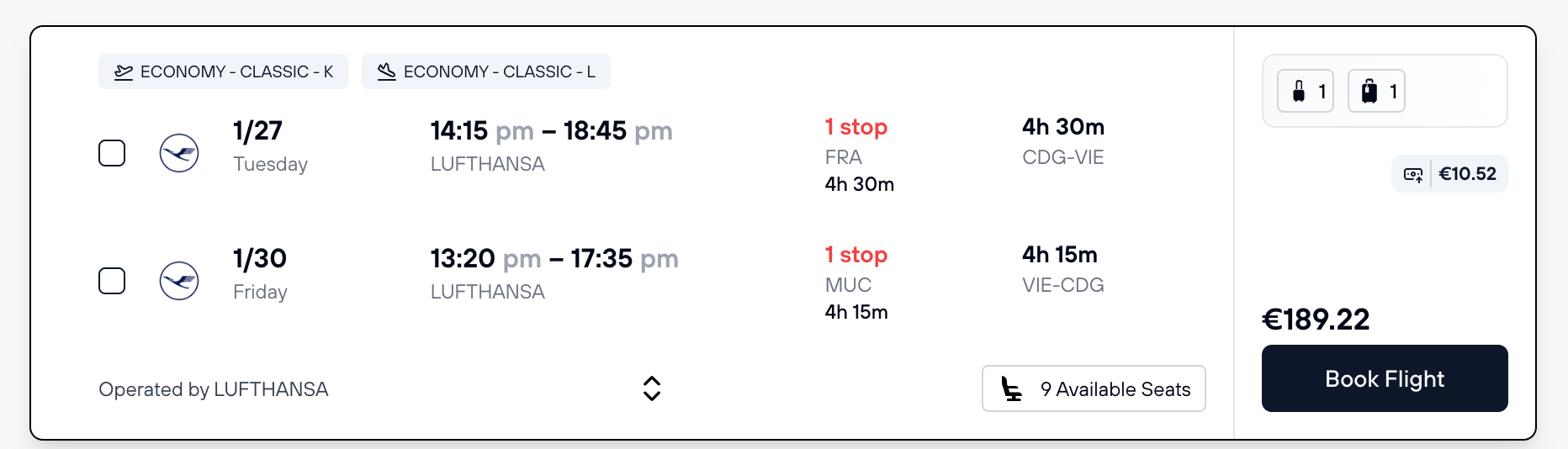
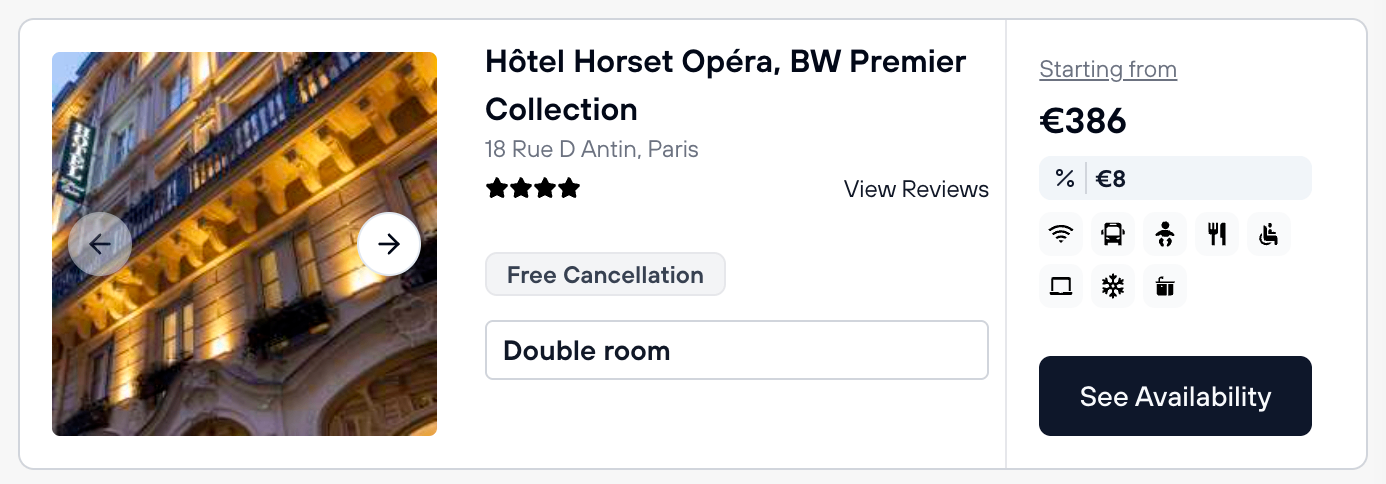
To help you catch these gaps, FX-Port displays a warning badge during search results whenever a product doesn't have a matching commission rule. This warning serves as a helpful reminder to add the missing commission rule.

Flight Search Result with Missing Commission Warning:

Flight search result showing warning badge for missing commission

Hotel Search Result with Missing Commission Warning:

Hotel search result showing warning badge for missing commission

Screenshots: Search results display warning badges on products that don't have matching commission rules configured in your account.

How to View Commissions During Booking

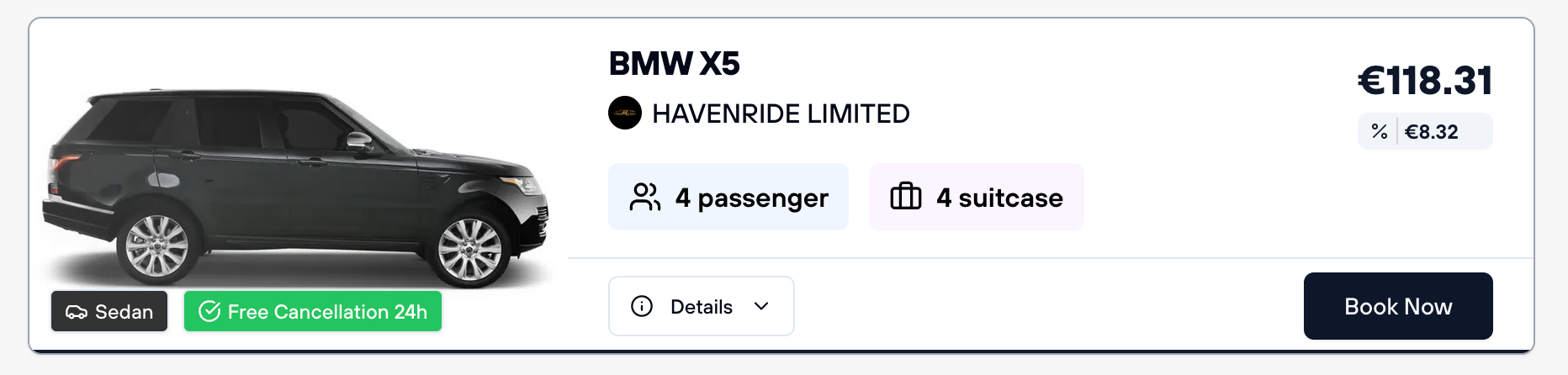
FX-Port makes it easy to see how much commission you'll earn before finalizing a booking. Simply hover your mouse over the price during search results, and the earned commission will be displayed to you.

Commission Tooltip on Flight Price:

Flight search result showing commission amount on price hover

Commission Tooltip on Hotel Price:

Hotel search result showing commission amount on price hover

Commission Tooltip on Transfer Price:

Transfer search result showing commission amount on price hover

Screenshots: Hovering over prices displays commission details, letting you see exactly how much profit you'll make on each booking before confirming.

Important Commission Considerations

  • Commission is Not Deducted from Balance: Your commissions are never deducted from your account balance. When a customer books a $250 flight with your $10 commission, the customer sees $260, but only $250 is deducted from your balance. Your agency keeps the full $10 profit.
  • Applies Regardless of Quantity: Commissions are added to the B2B price once, not multiplied by the number of travelers or rooms. Whether booking for 1 passenger or 10 passengers, the commission amount stays the same.
  • Multiple Rules Automatically Select Highest: If two or more commission rules could apply to a single product, FX-Port automatically uses the highest commission for you. You don't have to manually choose.
  • Only Managers Can Edit Commissions: Only users with Manager role can view, add, edit, or delete commission rules. Regular employees cannot make changes to commission settings.
  • eSIM Commissions Are Automatic: eSIM packages automatically include a 12% commission. You do not need to manually configure eSIM commission rules.
  • Plan for All Price Points: Always set your highest price range high enough to capture expensive bookings. Without a commission rule covering high prices, those bookings won't earn any commission.

Add Balance to Your Account

Balance management is fundamental to using FX-Port. Unlike traditional booking platforms where you pay during checkout, FX-Port requires you to pre-fund your account before making any bookings. This section explains how to add balance, what payment methods are available, and how currency management works.

Why You Must Fund Your Account in Advance

FX-Port operates on a prepaid balance system. This means your agency must deposit funds into your account before placing any bookings. You cannot pay at checkout like a traditional e-commerce site — the balance must be available upfront.

How it works:

  1. 1.You fund your account with the amount you want to spend
  2. 2.When you book a flight, hotel, or other product, FX-Port deducts the B2B price from your balance
  3. 3.Any commissions you've configured are captured separately and not deducted from your balance
  4. 4.As your balance depletes with bookings, you can add more funds anytime

Supported Payment Methods

FX-Port supports multiple payment methods to make funding your account convenient. We continuously expand our payment options to serve agencies worldwide.

Available Payment Methods:

  • Bank Transfers (Wire Transfer): Direct deposit to FX-Port's bank account. This is a secure and widely used method, though it may take 1-3 business days to process
  • Cryptocurrency (USDT): Send USDT directly to FX-Port's crypto wallet. This is instant and popular for agencies wanting fast funding with minimal fees
  • Cash Payments: Available in select markets. Contact FX-Port support for availability in your region
  • Additional Methods Coming Soon: FX-Port is continuously expanding to accept more currencies and payment methods based on agency demand

Understanding Currency Management

Your agency has an assigned currency for its account balance. This is typically your local/home currency by default, but you can request to change it based on your business needs.

Currency Basics:

  • Default Currency: When you create your agency account, your balance currency is typically set to your local currency
  • Change Your Currency: You can request to change your account currency to USD, EUR, or another major currency if your business operates internationally. Contact FX-Port support to make this change
  • Why Change Currency: Some agencies prefer USD or EUR because their customers pay in those currencies, or because they purchase in those currencies from suppliers

Funding Your Account in Different Currencies

Even if your account is set to a specific currency, you can deposit funds in different currencies. FX-Port will automatically convert the funds to your account's native currency at current exchange rates.

How Multi-Currency Funding Works:

Example Scenario:

  • Your account currency is set to EUR
  • You send 1,000 USD via bank transfer
  • FX-Port converts USD to EUR at the current exchange rate
  • You receive approximately 920 EUR in your account (the conversion is transparent)

Supported Deposit Currencies:

You can deposit in USD, EUR, USDT (crypto), and other major currencies supported by FX-Port. The deposited amount will be converted to your account's currency automatically.

Previewing Exchange Rates Before Funding

Before depositing funds in a different currency, FX-Port provides an exchange rate simulator on the funding page. This allows you to see exactly how much your deposit will be credited as in your account's currency.

How to Use the Exchange Rate Simulator:

  1. 1.Go to your Wallet or Payments section and click "Add Funds"
  2. 2.Select the currency you want to deposit in (e.g., USD)
  3. 3.Enter the amount you want to send
  4. 4.The simulator will show you the live exchange rate and how much will be credited to your account in your local currency
  5. 5.Review the conversion and proceed with payment if you're satisfied

How to Add Funds to Your Account

Adding balance to your FX-Port account is straightforward. You can do it anytime, and your balance updates immediately (or within a few hours depending on the payment method).

Steps to Add Funds:

  1. 1.Log in to your FX-Port dashboard and navigate to Wallet or Payments
  2. 2.Click the "Add Funds" button
  3. 3.Select your preferred payment method (Bank Transfer, Crypto, Cash, etc.)
  4. 4.If depositing in a different currency, the exchange rate simulator will show you the conversion
  5. 5.Enter the amount you want to deposit and review the details
  6. 6.Follow the payment instructions specific to your chosen method
  7. 7.After payment is confirmed, your balance updates. Bank transfers typically take 1-3 business days; crypto is instant
  8. 8.You can now use your balance to make bookings immediately

Balance Management Tips

  • Fund Regularly: Add funds when your balance gets low to avoid running out during peak booking times
  • Check Exchange Rates: If funding in a different currency, check the simulator to understand the conversion before depositing large amounts
  • Track Your Balance: Monitor your balance dashboard regularly to see your spending and ensure you always have sufficient funds
  • Consider Crypto for Speed: If you need instant funding, USDT transfers are typically processed immediately without banking delays
  • Contact Support for Issues: If you have questions about currencies, payment methods, or need to change your account currency, reach out to FX-Port support

Frequently Asked Questions & Important Information

This section covers essential information about FX-Port operations, including commission structures, contact requirements, refund processes, and important legal considerations. Please read this carefully as these topics are fundamental to your agency's compliance and success on the platform.

Commissions

Does FX-Port offer commissions on bookings?

No. FX-Port provides B2B net fares from our suppliers. If an airline, hotel, or any supplier offers a discount, we pass that discount directly to you in the B2B price we return. Commissions must be added by your agency through the commission settings. This allows you to set your own margins and pricing strategy.

How are commissions calculated and applied?

The commission is added to the total price regardless of:

  • Number of travelers or passengers
  • Number of tickets or rooms booked
  • Number of nights in a hotel stay
  • Type of booking (flights, hotels, transfers, etc.)

Your configured commission rules apply uniformly to all bookings in the specified price range.

Special Case: eSIM Commissions

eSIMs do not support custom commissions. Instead, a flat 12% commission is automatically added by default to all eSIM prices. In this case:

  • Agencies receive the 12% commission automatically
  • Your account is only charged the B2B price, not the full eSIM price
  • The difference between the full price and B2B price is your commission

Contact Details & Traveler Information

Why must I use accurate traveler contact information?

Using accurate traveler email addresses and phone numbers is critical and legally enforceable. This is essential for:

  • Flight Cancellations & Changes: Airlines must contact the passenger directly to inform them of schedule changes or cancellations
  • Emergencies & Disasters: In cases of natural disasters, accidents, or other emergencies, airlines and local authorities need to reach passengers directly
  • Legal & Embassy Communication: Governments and embassies may need to contact citizens in distress situations
  • Customer Support: Suppliers and FX-Port need to reach travelers for booking confirmations and assistance

FX-Port Monitoring & Enforcement

FX-Port actively monitors contact details used by agencies when placing bookings. We flag the following:

  • Repetitive or identical email addresses and phone numbers across multiple bookings
  • Invalid phone numbers or non-functional numbers
  • Disposable/throwaway email addresses
  • Agency contact details instead of traveler contact details

Repeated violations of this requirement may result in account suspension or permanent loss of access to FX-Port.

Refund Processing Times

How long do refunds take?

Refund processing times depend on the supplier and service type:

  • Hotels: Usually instant or fast (same day)
  • Airport Transfers: Usually instant or fast (same day)
  • Flights & Tickets: Usually instant or within the same day
  • Some Airlines & Suppliers: May take several weeks to issue a refund

When processing a cancellation, FX-Port immediately initiates the refund request with the supplier. The actual refund to your account balance depends on when the supplier processes it. You'll be notified once the refund is received and credited to your balance.

Payments & Account Funding

How does payment responsibility work?

Agencies must fund their accounts and place bookings using their own funds. It's important to understand this relationship:

  • FX-Port Agreement: FX-Port has an agreement with the agency, not with the travelers
  • Agency Responsibility: Your agency is responsible for collecting payments from your customers using your own payment methods (credit card processing, bank transfers, etc.)
  • Your Balance: You pre-fund your FX-Port account, which covers your bookings
  • Customer Payments: Whatever payment method your customers use is between you and your customers

IATA Certification

Is IATA certification required to use FX-Port?

No. IATA certification is not required. Agencies and companies can join FX-Port without IATA accreditation. FX-Port offers the same services and fares to all customers equally, regardless of IATA status.

This means:

  • Individual entrepreneurs and small agencies can access the same B2B fares as large, IATA-certified agencies
  • Corporate travel departments can use FX-Port directly without needing IATA credentials
  • All customers benefit from the same transparent, competitive pricing

GDS Post Access

Does FX-Port offer access to a GDS Post?

No. FX-Port does not grant access to a GDS Post. All operations on FX-Port are conducted exclusively through:

  • The FX-Port Web Platform: Our user-friendly dashboard for searching, booking, and managing reservations
  • The FX-Port API: For agencies that want to integrate FX-Port into their own systems

These channels provide complete access to all FX-Port services without requiring legacy GDS terminals.

Traveler Notifications

What notifications do travelers receive?

FX-Port automatically sends important notifications to travelers for every booking:

  • Booking Confirmation: Travelers receive a copy of every booking confirmation with all details including the final price
  • Cancellation Notification: When a booking is cancelled, travelers receive a cancellation notification immediately

Important: Because FX-Port discloses the full price to travelers in these notifications, it's critical to:

  • Set appropriate commissions for your service
  • Communicate your agency's pricing and any additional fees clearly to customers before booking
  • Ensure transparency about what the customer will pay vs. what they see in the FX-Port notification

Have any questions or something is not clear? Contact us for support.

FX-PORT

Your trusted B2B travel distribution platform. Access global inventory and grow your business with better rates and easy tools.

Flight Services

FX-Port is a comprehensive B2B flight distribution platform enabling travel agencies to access and sell flight tickets worldwide. With connections to over 500 airlines, agencies can offer competitive wholesale rates with instant confirmations and automated ticketing.

Our platform provides real-time availability, price comparison tools, and automated booking management. Travel agencies can access exclusive B2B airfares, manage commissions, and streamline their flight operations through our integrated system.

Accommodation Services

Access our extensive network of over 1.5 million properties worldwide through our B2B hotel booking platform. Travel agencies can offer competitive rates with guaranteed margins and instant room confirmations across all accommodation categories.

From luxury resorts to budget-friendly options, our platform provides comprehensive property information, dynamic pricing, and automated booking management for seamless hotel distribution.

Travel Solutions

Comprehensive transfer services with a global network of verified providers, offering airport transfers, city tours, and professional chauffeur services. Our ferry booking system connects major maritime routes with instant booking capabilities and competitive B2B rates.

Specialized Umrah packages with end-to-end services including visa processing, accommodation, and transportation. Custom travel packages with dynamic pricing and automated inventory management for travel agencies.

FX-Port revolutionizes B2B travel distribution with cutting-edge technology and comprehensive solutions. Our platform enables travel agencies to access global inventory, manage bookings efficiently, and grow their business with competitive rates and automated tools.

With support for multiple currencies, local payment processing, and 24/7 customer service, we ensure seamless operations for travel agencies worldwide. Our platform features real-time availability, instant confirmations, and comprehensive booking management tools.

Travel agencies can leverage our platform to offer a complete range of travel services, including flight bookings, hotel reservations, transfer services, ferry tickets, Umrah packages, and custom travel experiences. Our B2B marketplace connects agencies with verified suppliers worldwide.

FX-Port provides enterprise-grade security, automated commission management, and detailed analytics for business growth. Join hundreds of successful agencies using our platform to streamline their operations and expand their market presence.

© 2026 FX-PORT. All rights reserved.